
Cursor smoothing
A cursor that knew where it was going.
Real mouse movement is shaky and hesitant, and it is the first thing that makes a demo look amateur. SmoothCut records the cursor separately from the screen, so it can be redrawn afterwards as a calm, deliberate glide.
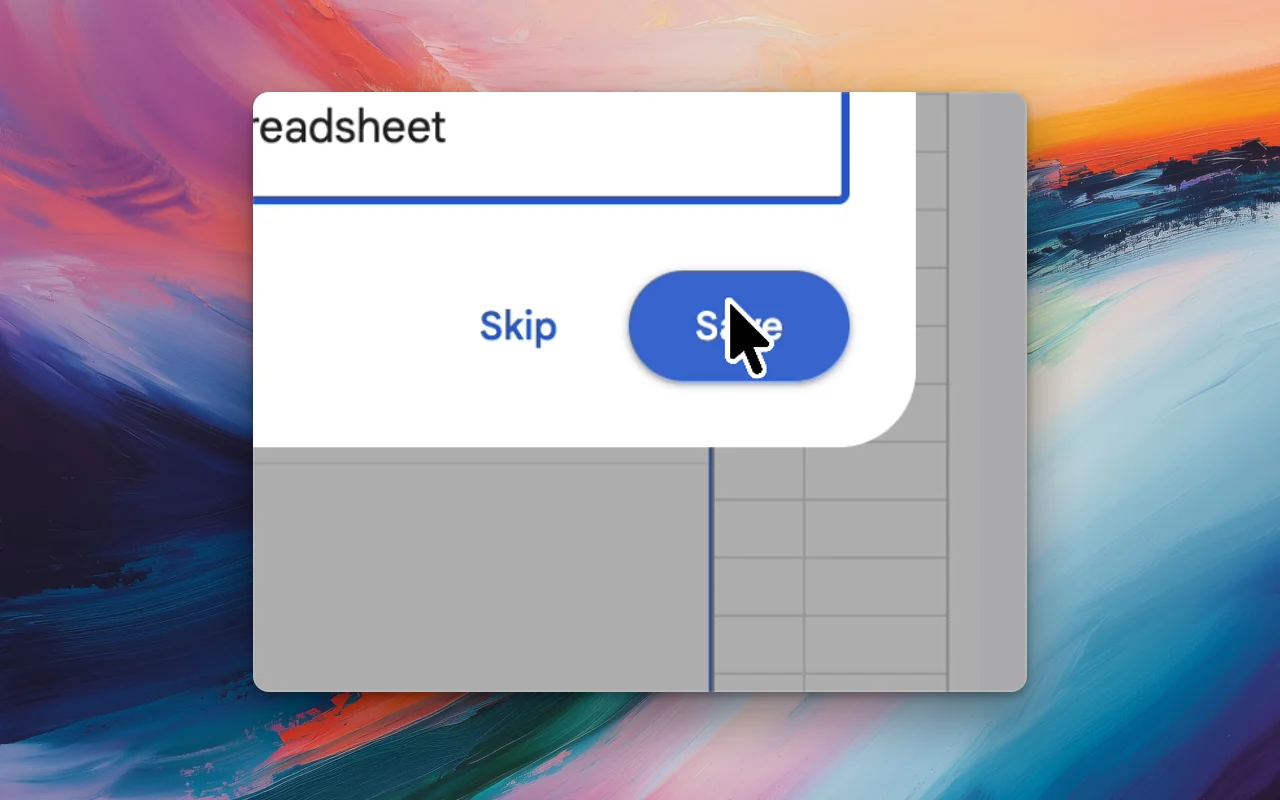
- Shaky movement becomes a smooth glide
- Resize the cursor after recording
- Cursor themes and click ripples
- A return-to-start move, for videos that loop
How it works
Cursor smoothing, step by step
- 01
Recorded as data, not pixels
The pointer is not burned into the video. Its position and clicks are stored beside the recording and drawn on top at the end, which is why everything about it can still change.
- 02
Bigger, clearer, on brand
Make the cursor large enough to follow on a phone, choose a theme, and add a ripple on each click so the viewer never wonders what you pressed.
- 03
Nothing to redo
Changing the cursor never touches the recording. Try a size or a style, look at the preview, change your mind.
Cursor smoothing: questions
Can I hide the cursor completely?
Yes. Because the cursor is drawn on top of the recording rather than being part of it, it can be shown, restyled or hidden.
Do I have to record in a special mode?
No. Every SmoothCut recording stores the cursor this way; smoothing and restyling are available on all of them.
Does the cursor stay sharp when I make it bigger?
Yes. SmoothCut draws its own high-resolution cursor artwork rather than enlarging the small system one.
More of what SmoothCut does
- Automatic zoom Screen recorder with auto zoom: SmoothCut watches where you click and zooms there for you, with depth, timing and easing set. Adjust any zoom on the timeline.
- Backgrounds and frames Put a screen recording on a wallpaper, gradient, colour or your own image, with padding, rounded corners and a shadow, plus motion blur for fast movement.
- Auto fix Auto fix reads your recording and plans the edit: silences, filler words, zooms, layout and sound. You read the plan first, and each step is an undoable edit.
- All features
Record better videos, faster.
Use every feature today, exporting included. One payment opens 4K at 60 fps, share links and a clean export.
macOS and Windows · No account needed