
How to
How to screen record on a Mac, with sound.
Every Mac can record its screen for free, and you can include your voice. What the built-in recorder can't do is record the sound your Mac plays, like a video, a call or app sounds. Here's both ways, and how to stop a recording.
How to
Record your Mac screen with the built-in tool
- 01
Press Shift-Command-5
The screenshot toolbar opens at the bottom of the screen. (Or open QuickTime Player and choose File › New Screen Recording; it opens the same toolbar.)
- 02
Choose what to record
Pick Record Entire Screen or Record Selected Portion. To include your voice, open Options and choose your microphone.
- 03
Press Record
Click Record. To record one screen of several, click the screen you want.
- 04
Stop the recording
Click the stop button in the menu bar, or press Command-Control-Esc. The recording is saved to your Desktop as a .mov file.
How to stop a screen recording on Mac
Click the round stop button in the menu bar at the top of the screen, or press Command-Control-Esc. If the menu bar is hidden, move the pointer to the top of the screen to show it. The recording's thumbnail appears in the corner; click it to trim it, or leave it and it saves to your Desktop.
Why your Mac's own sound isn't in the recording
The built-in recorder can record your microphone, but it has no option for the sound your Mac plays: a video in a browser, the other people on a call, app alerts. That's still the case on macOS 26 Tahoe. Recording it the built-in way means installing a virtual audio driver and routing your sound through it.
Record your screen with your Mac's sound and your voice
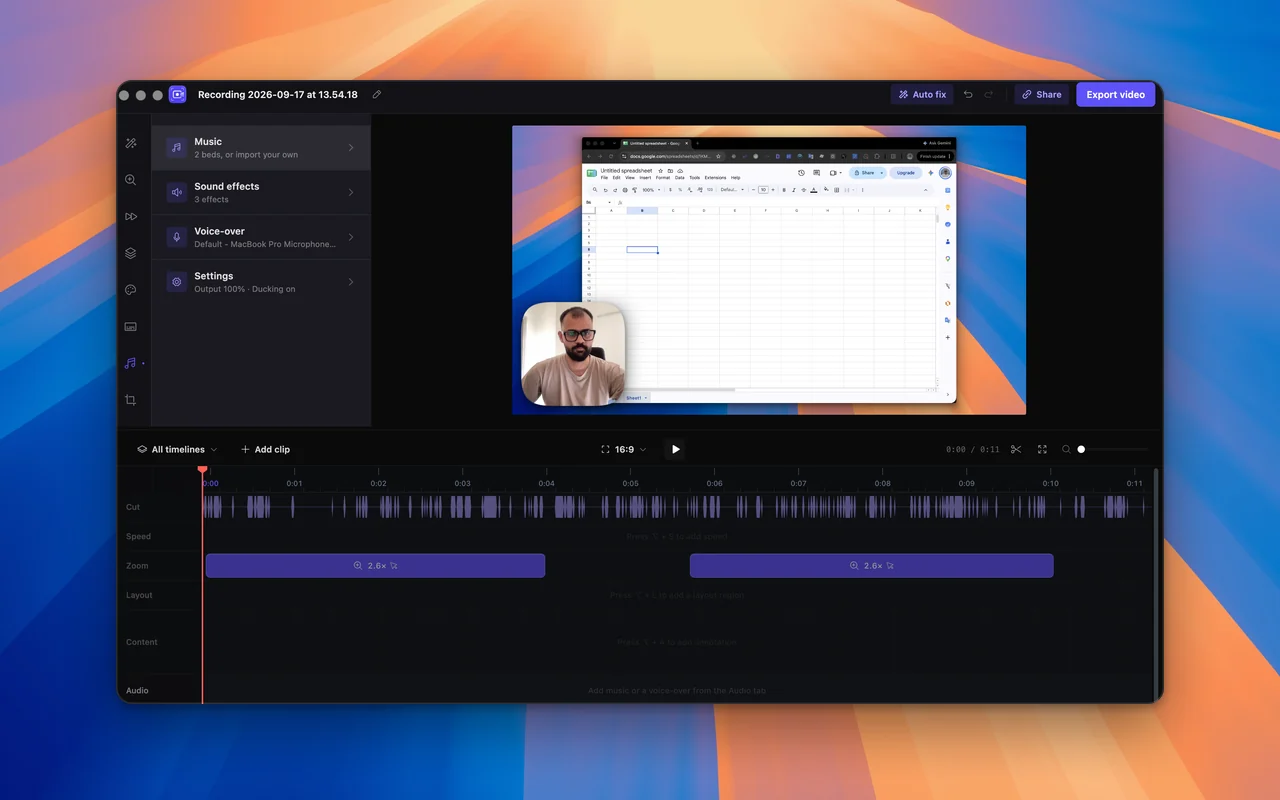
SmoothCut records the Mac's own sound and your microphone together, as separate tracks you can balance afterwards, with no audio drivers to install. It also does the editing a raw recording needs: it zooms in on what you click, smooths the cursor, can add your camera, writes captions and removes background noise, all on your Mac.
It's free to use, export included; a free export is 720p with a small mark. Press Record, pick a window or the whole screen, and press Finish when you're done.
The features that matter here
What does the work
- Automatic zoom Screen recorder with auto zoom: SmoothCut watches where you click and zooms there for you, with depth, timing and easing set. Adjust any zoom on the timeline.
- Studio voice Studio voice removes steady background noise with a neural denoiser on your computer, then levels and warms your voice. What you hear in the editor exports.
- On-device captions On-device captions: SmoothCut turns your voice into word-timed captions with a speech model on your computer. Download it once; it then works offline.
- Cursor smoothing Smooth cursor for screen recordings: SmoothCut records your cursor as data, so you can smooth, enlarge and restyle it and add click effects afterwards.
Questions
How do I screen record on a Mac with audio?
Press Shift-Command-5, open Options and choose your microphone, then click Record. That records your voice. To also record the sound your Mac plays, use an app that captures system audio, such as SmoothCut, which records both as separate tracks.
How do I stop a screen recording on a Mac?
Click the stop button in the menu bar, or press Command-Control-Esc.
Where do Mac screen recordings go?
To your Desktop by default, as .mov files. You can choose another place under Options in the Shift-Command-5 toolbar.
Can I record my screen and webcam at the same time on a Mac?
Not with the built-in recorder in one file. SmoothCut records the screen and your camera together and lets you choose the layout afterwards.
Is there a free way to screen record on a Mac?
Yes: Shift-Command-5 and QuickTime Player are free. SmoothCut is also free to use, with free exports at 720p and a small mark.
Keep reading
- Screen recorder for Mac Screen recorder for Mac: how to record with the built-in tools and with SmoothCut, which adds automatic zoom, a smooth cursor and on-device captions.
- Screen recorder with audio Record your screen with microphone and system audio as separate tracks you can balance afterwards, then clean up your voice on your computer. Mac and Windows.
- Best screen recorder for Mac The best screen recorders for Mac in 2026: SmoothCut, Screen Studio, CleanShot X, FocuSee, Cap, OBS and the built-in recorder, with pricing and who each suits.
- Download Download the SmoothCut screen recorder for macOS and Windows. Free to use with no account; a licence removes the small mark and adds 4K and share links.
Record better videos, faster.
Use every feature today, exporting included. One payment opens 4K at 60 fps, share links and a clean export.
macOS and Windows · No account needed