
Windows
Polished screen recordings, on Windows too.
Most of the tools that make screen recordings look produced are Mac-only. SmoothCut does the same automatic zooms and cursor smoothing on Windows 10 and 11.
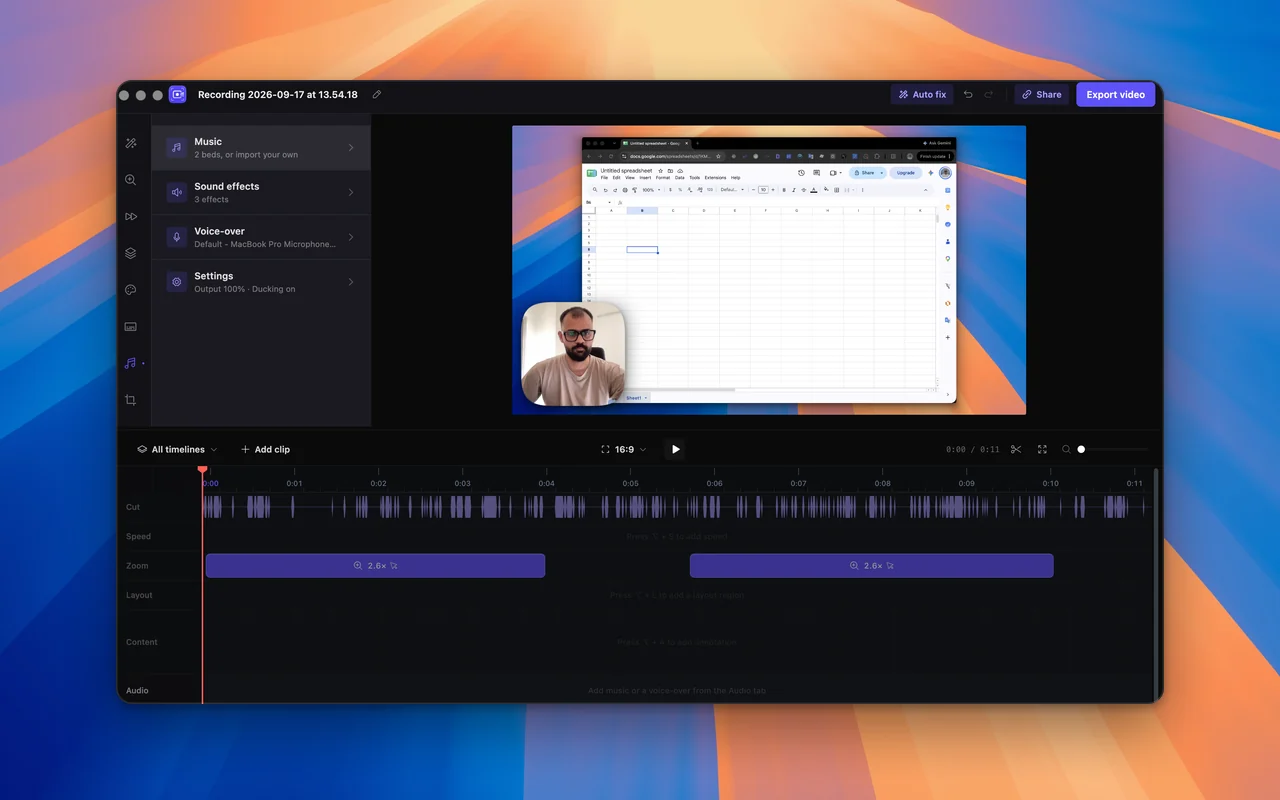
How to
Record your Windows screen with SmoothCut
- 01
Install it
Run the installer on Windows 10 or later. If SmartScreen shows a warning, choose More info, then Run anyway. SmoothCut is new and its installer is not code-signed yet, which is what the warning is about.
- 02
Launch and record
Open SmoothCut from the Start menu, press Record, and pick a window or the whole screen.
- 03
Finish
Press Finish and the editor opens with the recording already zoomed and smoothed, ready to export or adjust.
The built-in way, and where it stops
Windows has two free recorders. Press Win+G for the Xbox Game Bar, which records one app window, or use the Snipping Tool's record mode on Windows 11 for a region of the screen.
Both give you a raw file. There is no zoom, no cursor treatment, no camera layout and no editor to speak of, so anything beyond a quick capture means a second tool.
What SmoothCut adds
The same things it does on a Mac: automatic zooms, a cursor you can smooth and restyle afterwards, microphone and system audio as separate tracks, camera layouts, captions and noise removal on your own computer, and export as MP4 or GIF.
The features that matter here
What does the work
- Automatic zoom Screen recorder with auto zoom: SmoothCut watches where you click and zooms there for you, with depth, timing and easing set. Adjust any zoom on the timeline.
- Cursor smoothing Smooth cursor for screen recordings: SmoothCut records your cursor as data, so you can smooth, enlarge and restyle it and add click effects afterwards.
- Camera layouts Record screen and camera together, then arrange them afterwards: picture-in-picture, side by side, stacked or fullscreen. Switch layouts mid-video.
- On-device captions On-device captions: SmoothCut turns your voice into word-timed captions with a speech model on your computer. Download it once; it then works offline.
Questions
Which versions of Windows are supported?
Windows 10 or later.
Can I use one licence on Windows and on a Mac?
Yes. It is the same app on both, and a licence works on either.
SmartScreen warned me about the installer. Is it safe?
SmartScreen warns about apps it has not seen many installs of, and SmoothCut's Windows installer is not code-signed yet. Download it only from smoothcut.studio, then choose More info, then Run anyway.
Is it a subscription?
No. It is one payment. Before that you can use all of it for free, including exporting at 720p with a small mark in the corner.
Keep reading
- How to screen record on Windows How to screen record on Windows 11 and Windows 10 with audio: the Snipping Tool, the Xbox Game Bar, what each records, and how to record the whole screen with sound.
- Best screen recorder for Windows The best screen recorder for Windows 11 and Windows 10 in 2026: SmoothCut, FocuSee, Camtasia, Cap, Tella, Cursorful and OBS, with pricing and who each suits.
- Screen Studio for Windows Is there Screen Studio for Windows? No, it is macOS only. SmoothCut gives the same automatic zooms and smooth cursor on Windows and Mac, bought once.
- Download Download the SmoothCut screen recorder for macOS and Windows. Free to use with no account; a licence removes the small mark and adds 4K and share links.
Record better videos, faster.
Use every feature today, exporting included. One payment opens 4K at 60 fps, share links and a clean export.
macOS and Windows · No account needed