
AI assistants (MCP)
SmoothCut works with AI assistants that speak the Model Context Protocol (MCP): Claude Desktop, Claude Code, Cursor, VS Code with Copilot, and any other MCP app. Once connected, you can ask your assistant to record your screen, find a recording, read what you said in it, and export it as an MP4 or GIF.
It needs SmoothCut 1.16 or later.
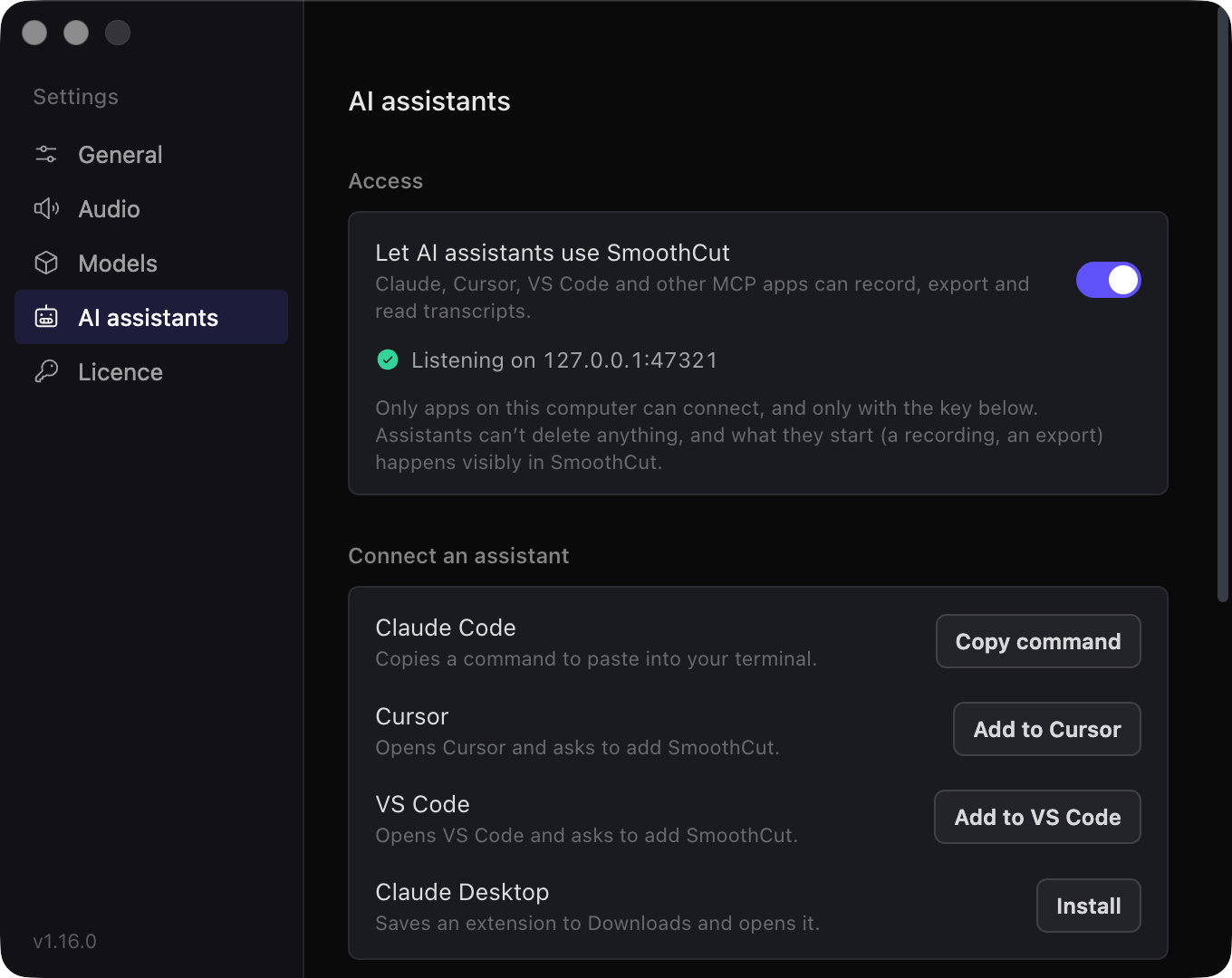
Turn it on
- Open SmoothCut and go to Settings → AI assistants.
- Switch on Let AI assistants use SmoothCut. The status line says Listening on 127.0.0.1:47321.
- Connect your assistant with one of the buttons below the switch.
It is off until you switch it on, and switching it off closes the connection straight away.
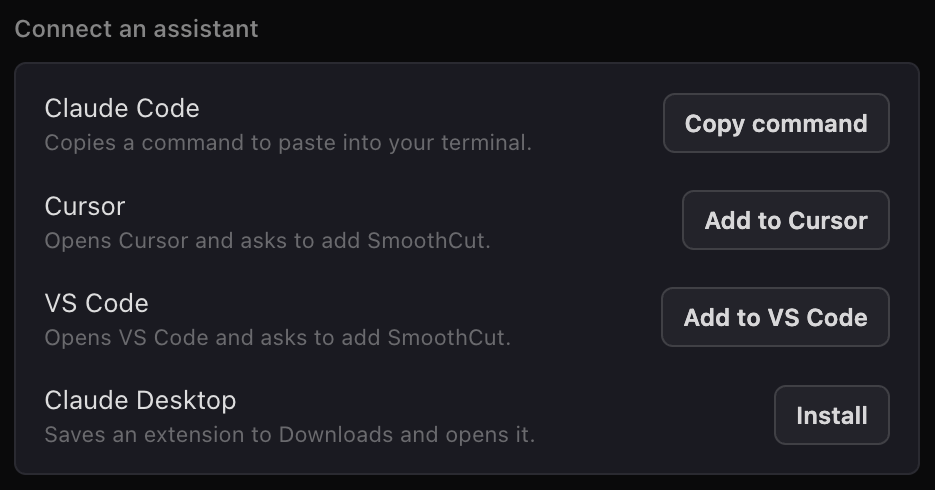
Connect your assistant
| Assistant | What to do |
|---|---|
| Claude Desktop | Press Install. SmoothCut saves SmoothCut.mcpb to your Downloads folder and opens it, and Claude Desktop asks you to confirm the extension. |
| Claude Code | Press Copy command and paste it into your terminal. It runs claude mcp add with SmoothCut's address and key. |
| Cursor | Press Add to Cursor. Cursor opens and asks you to add SmoothCut. |
| VS Code | Press Add to VS Code. VS Code opens and asks you to add SmoothCut. |
| Any other MCP app | Under Any other app, copy the server URL (http://127.0.0.1:47321/mcp) and the Authorization header, or the ready-made JSON config. |
SmoothCut has to be running for the assistant to reach it. Claude Desktop is the exception: its extension opens SmoothCut when your assistant first needs it.
Things to ask
- "Record my screen." Then, when you are done: "Stop recording."
- "Export my last recording as a GIF."
- "Export the recording called onboarding as an MP4 to my Desktop."
- "What did I say in my last recording? Write a summary and chapters."
- "Turn my newest recording's transcript into release notes."
- "Find the recording about pricing and open it."
- "Rename my last recording to Billing demo."
- "Give me the raw files for my last recording so I can edit it in Resolve."
- "Show me my share links."
Recordings can be named loosely: the full name, part of it, or nothing at all for your newest one. If more than one recording matches, the assistant is told which ones, so it can ask you.
What your assistant can do
| Tool | What it does |
|---|---|
| list_recordings | Lists your recordings, newest first, optionally filtered by name |
| get_recording | Details of one recording: name, folder, length, dates, whether it has camera and captions |
| get_transcript | What was said, with timestamps, from the recording's captions or its live transcript |
| rename_recording | Renames a recording |
| open_recording | Opens a recording in the editor |
| start_recording | Starts recording, with your usual source, microphone and camera, after the normal countdown |
| stop_recording | Stops the recording and returns the new recording |
| recording_status | Whether SmoothCut is recording, and for how long |
| export_recording | Exports to MP4 or GIF, at a quality and frame rate, to a path you choose (Downloads by default), and returns the file's path |
| export_raw_files | Copies a recording's original screen, camera and audio files, untouched, into a folder (Downloads by default) |
| list_share_links | Your share links, with their URLs and expiry dates |
Exports follow your licence. On the free plan they are 720p at up to 30 fps with the small Made with SmoothCut mark; with a licence, everything up to 4K at 60 fps. An export never overwrites a file: if the name is taken, SmoothCut adds a number.
Privacy and safety
- Only apps on your computer can connect. SmoothCut listens on
127.0.0.1, which other computers cannot reach, and refuses requests from websites. - Every request needs your key. It is created when you switch the feature on and stored only on your computer. Reset key in the same tab makes a new one; assistants you connected before stop working until you connect them again.
- Nothing happens out of sight. A recording shows the usual countdown and Recorder, and an export opens the editor while it works.
- Assistants cannot delete anything, and they cannot upload: there is no tool for either.
- Your recordings and transcripts go to the assistant only when it asks for them, and only the parts it asks for. What it does with them is up to the assistant you use.
Show SmoothCut in the DynamicLake notch (Mac)
If you use DynamicLake, SmoothCut can show what it's doing in your notch: a red recording dot and a running timer while you record, and a progress ring while you export. Hover the notch to pause, resume or stop a recording from there. When an export finishes, a Show in Finder button appears for a few seconds. It needs SmoothCut 1.18 or later.
- In SmoothCut, open Settings → AI assistants → Notch and turn on Show SmoothCut in the DynamicLake notch.
- Click Add to DynamicLake. SmoothCut saves a small plugin to your Downloads folder and shows it in Finder.
- In DynamicLake, open Settings → Plugins → Install Local and choose that plugin.
It's off until you turn it on, and it only talks to apps on your own Mac. If SmoothCut isn't running, or the switch is off, the plugin stays quiet and shows nothing. The plugin is open source: github.com/charanjit-singh/smoothcut-dynamiclake.
Troubleshooting
The assistant says it can't reach SmoothCut. Make sure SmoothCut is open and the switch in Settings → AI assistants is on.
It worked before, and now every request is refused. The key was reset. Connect the assistant again from Settings → AI assistants.
The status line shows a port other than 47321. Another app was using 47321, so SmoothCut took a free port instead. Connect your assistant again so it uses the new address.
The assistant says SmoothCut is recording. Recording, opening and exporting are refused while a recording is in progress, so an assistant can't interrupt one. Stop the recording first.